Run your whole fleet from one console
The Invisionary Console puts your entire interactive display network at your fingertips. Seamlessly publish content, deploy immersive experiences, monitor device performance and manage updates across your fleet, all through one secure, cloud-based platform, accessible from anywhere.
Included with every LUX-75, for event hire and permanent installations.
01 / Meet the Console
Mission control for a fleet of screens
Invisionary Media displays turn everyday spaces into interactive experiences. The Console gives you complete control across your network, from a single venue to thousands of locations. Manage what plays, where it plays, who has access and how every display is performing.
Built for LUX-75 and not limited to it, since the Console can also manage retrofit installs of other displays.
Content
What plays
Apps, Content Schedules and Media, in one library shared across your organisation.
See ContentDeployments
Where it plays
Group displays by venue, region or campaign, then see where each one is on a live map and run it from there.
See the fleet viewOrganization
Who is in charge
People, roles and exactly which deployments each person can manage.
See accessDevelop
What you build next
SDK tokens and docs for your own interactive experiences.
See the SDK
02 / Content
A content library your whole team can use
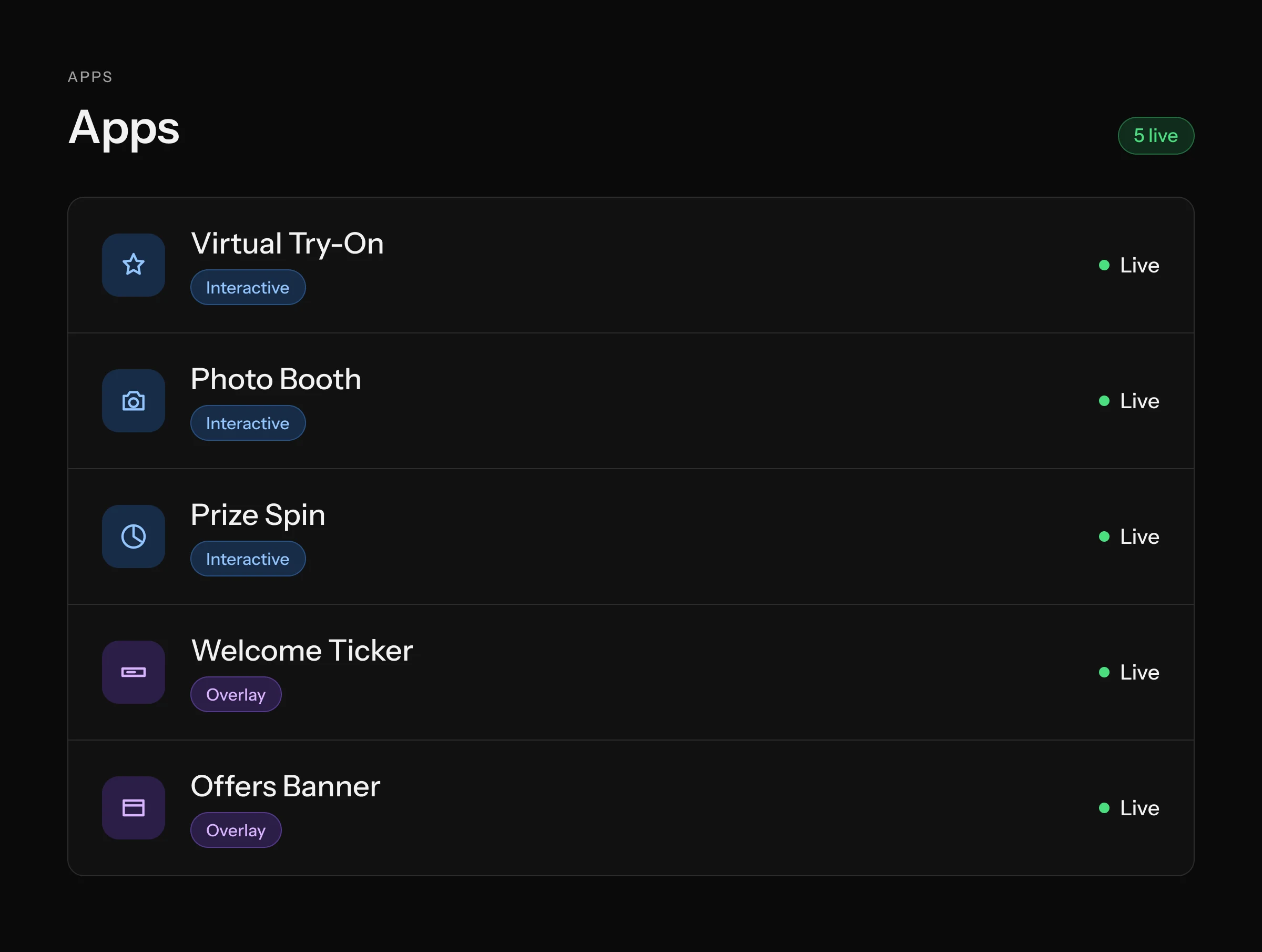
Apps give a display its behaviour, Media gives it its look and Content Schedules decide when each one runs, so you build once and use it on any deployment
Ready-made apps for any display
- Pick from the library of virtual try-on, mini-games and AI experiences, with bespoke builds from our studio sitting alongside them, all ready to use.
- Choose Interactive or Overlay depending on the job, as Interactive apps take over the screen when someone steps up while Overlay apps run on their own timeline over the top.
- Every app is tied to a release so you always know which build is on which display.
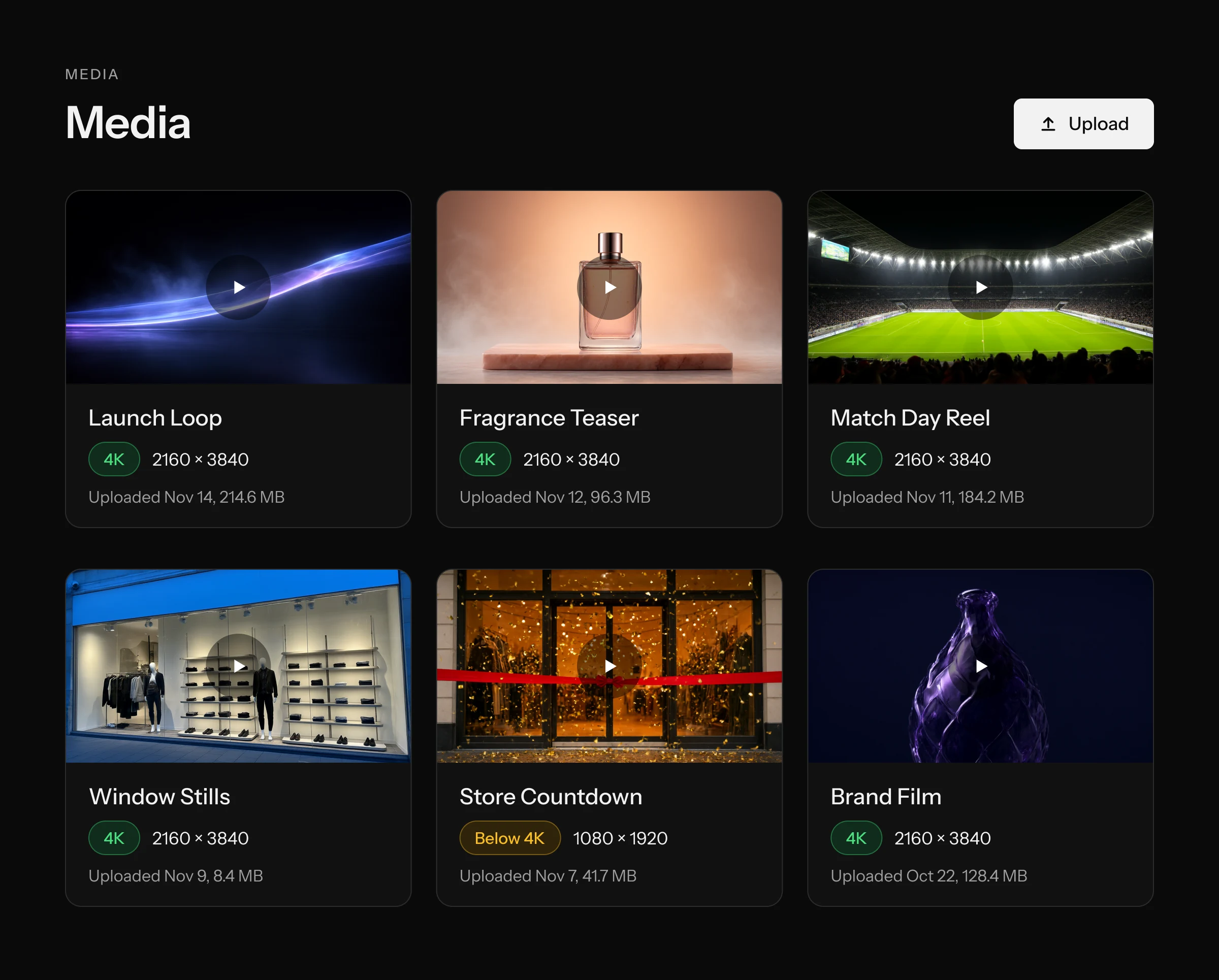
4K content, checked before it ships
- Drag and drop video and images straight into the Console, with live progress on large masters.
- Every file is checked before it ships so anything the player can’t decode is stopped with a plain-English reason and anything below 2160 × 3840 asks you to confirm, which keeps soft-looking content off your screens.
- Media Playlists. Combine video, images and live web pages, drag to reorder and set each duration. Use a playlist in a schedule like an app.
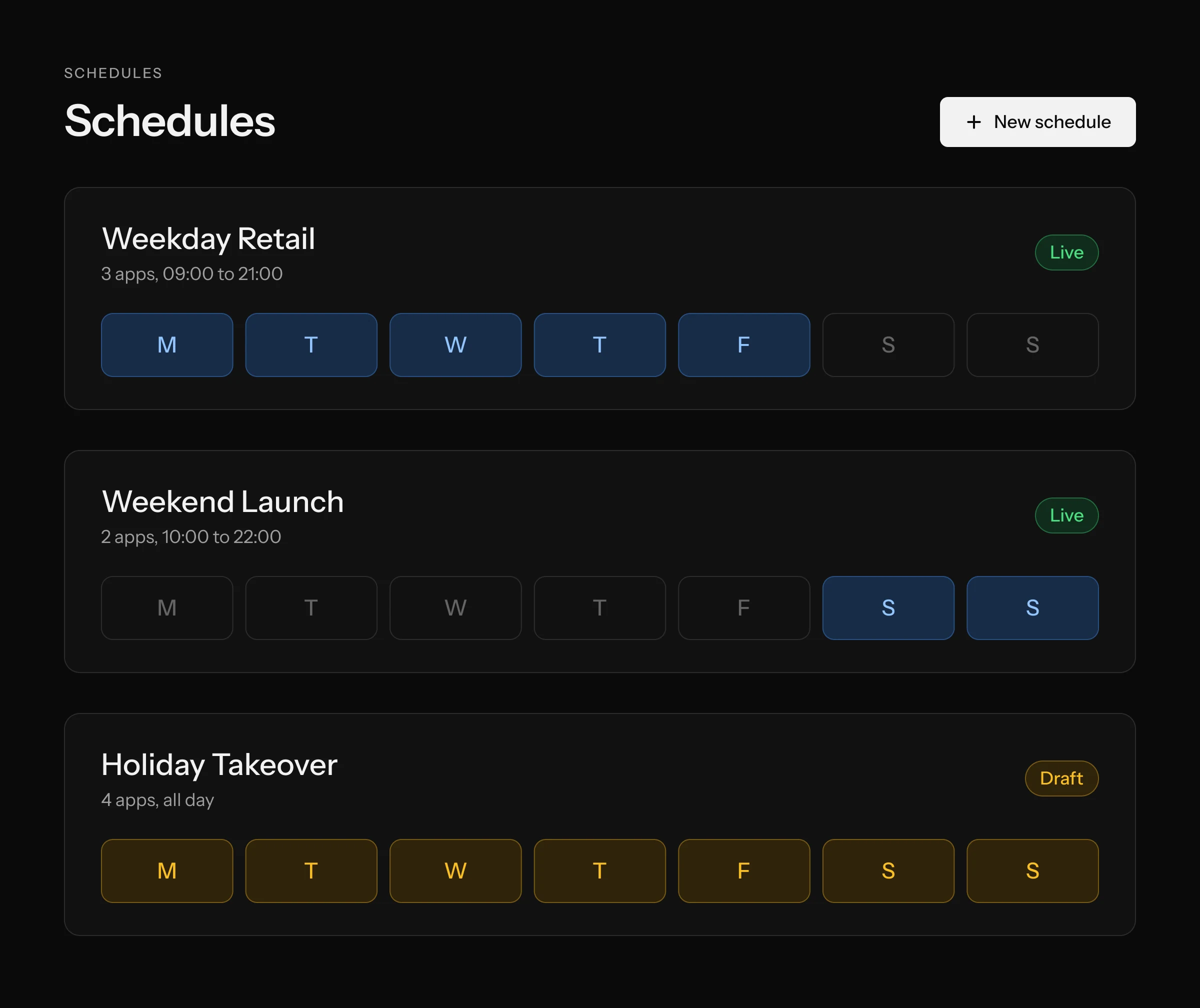
Plan what each screen plays
- Build a schedule from apps and playlists Set how long each one runs and drag to reorder.
- Draft, Active, Archived. Nothing goes live until you say so.
- Reuse it anywhere Run the same schedule across displays and deployments.
03 / Go live in four steps
From idea to every screen in a few clicks
There are no installers, USB sticks or engineers on site, because your displays check in with the Console and follow whenever you change something.
Step 1
Choose
Pick an app, a Media Playlist or a Content Schedule from your library.
Step 2
Deploy
Add the app to a display’s Installed Apps. It downloads and installs on its own, and you watch progress per app.
PendingDownloadingInstalledStep 3
Check
The Console checks every app in a schedule is installed on the display. If anything is missing, it says what and adds it in one click.
Step 4
Go live
Assign the schedule to the display, set the time or choose Always On, and it plays.
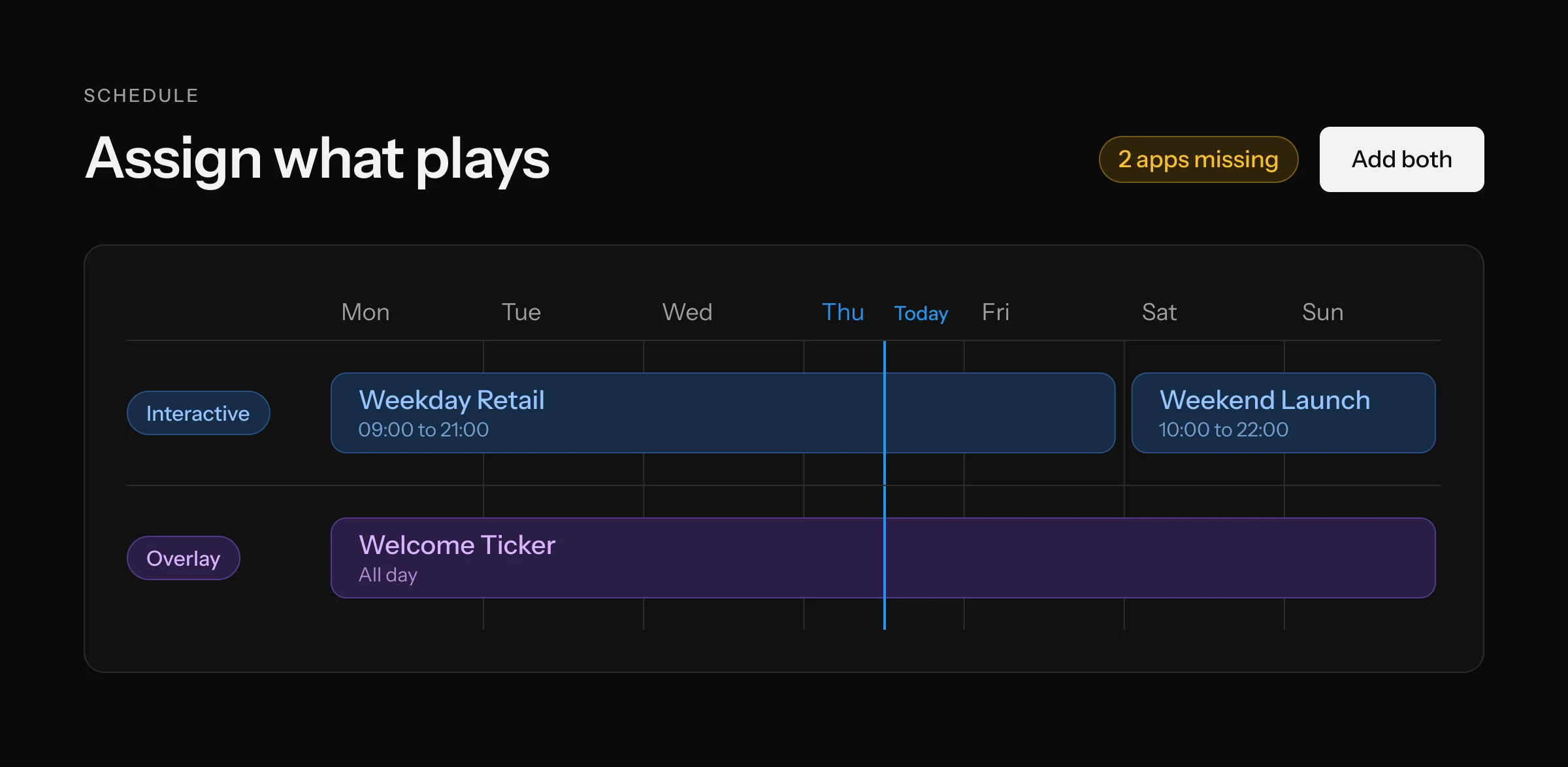
Nothing goes live that a display cannot run
The Console checks before it schedules, so a screen never goes black, and because content is shared across your displays the same campaign can reach Newcastle and New York without re-uploading.
04 / Scheduling
Programme the day like a calendar
Drag a block onto the calendar to schedule it and drag its edges to resize it, with 15-minute precision so a half-time experience starts exactly when half-time does.
Interactive
Overlay
Always On
Run an Interactive and an Overlay app together
Each display has an Interactive track and an Overlay track, so both can run at the same time without getting in each other’s way.
Run all day or in a set window
Set a track to run continuously with Always On, or pick a start and an end time.
See readiness before you commit
Every option is labelled Ready or Missing 2 for that display before you choose it.
Stadiums
Games before kick-off, sponsor experiences at half-time.
Retail
Try-on during opening hours, product film overnight.
Airports
Wayfinding overlay all day, interactive campaign in peak waves.
05 / Your fleet, live
See every display and know in seconds if one needs you
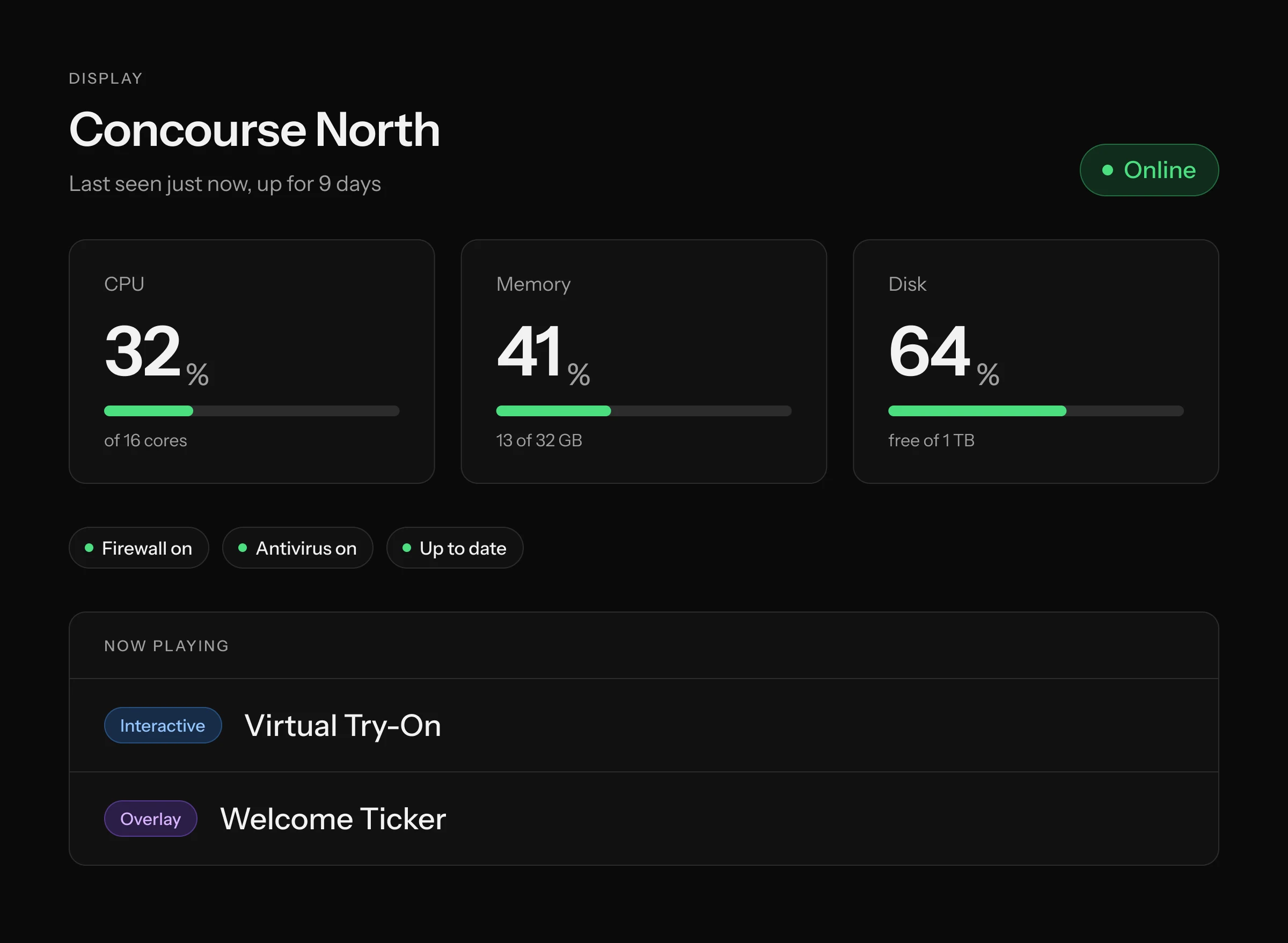
Open Devices and your deployment appears on a map showing where every display is located, and one click on any pin opens a panel with everything about that display, with no logging in to a remote machine and no waiting on a site report.
Device status
Concourse North
Offline
Critical alert raised and last seen seconds ago.
- Online, Installed, Active
- Draft, Pending
- Offline, Error
- Archived, Inactive
Everything about a display in one panel
- Location Details
- Name the display and place it. Search for an address, drag the pin or enter coordinates.
- Device Status
- Live Online or Offline with last seen and uptime, the apps running now, and CPU, memory, disk and temperature.
- Installed Apps
- What is on this display and its install state. Add or remove apps remotely.
- Schedules
- The display’s weekly calendar, assignments and readiness.
Resource usage
CPU, memory and free space per disk, with a refresh on demand.
Security posture
Firewall, antivirus, definitions and UAC as clear on or off chips, so a gap stands out.
Alerts by priority
Critical, Elevated, Normal and Low counts, plus the latest messages with timestamps.
Offline alerts
A display that stops reporting flips to Offline within seconds, so you find out from the Console and not from a visitor
Check-ins from the display
06 / Always current
Update every display without leaving your desk
Software moves, so your fleet should move with it, without anyone travelling to a venue
Roll out an app update to every display at once
When a new release is published to your organisation, every display with that app installed downloads it on its next check-in. Watch each one reach Installed, or see which one reported an Error and why.
A media player that keeps itself current
The media player installs automatically on every compatible display and updates across the whole fleet in a single step.
Stay ahead of security issues
Every display reports its firewall, antivirus and definition status, with alerts ranked by priority, so gaps get fixed the same day instead of waiting for the next site visit.
- No site visits to roll out a release.
- A clear record of which version each display is running.
- The Console only schedules what a display has installed, so updates never leave a screen with nothing to play.
07 / Access and IAM
The right people see the right screens
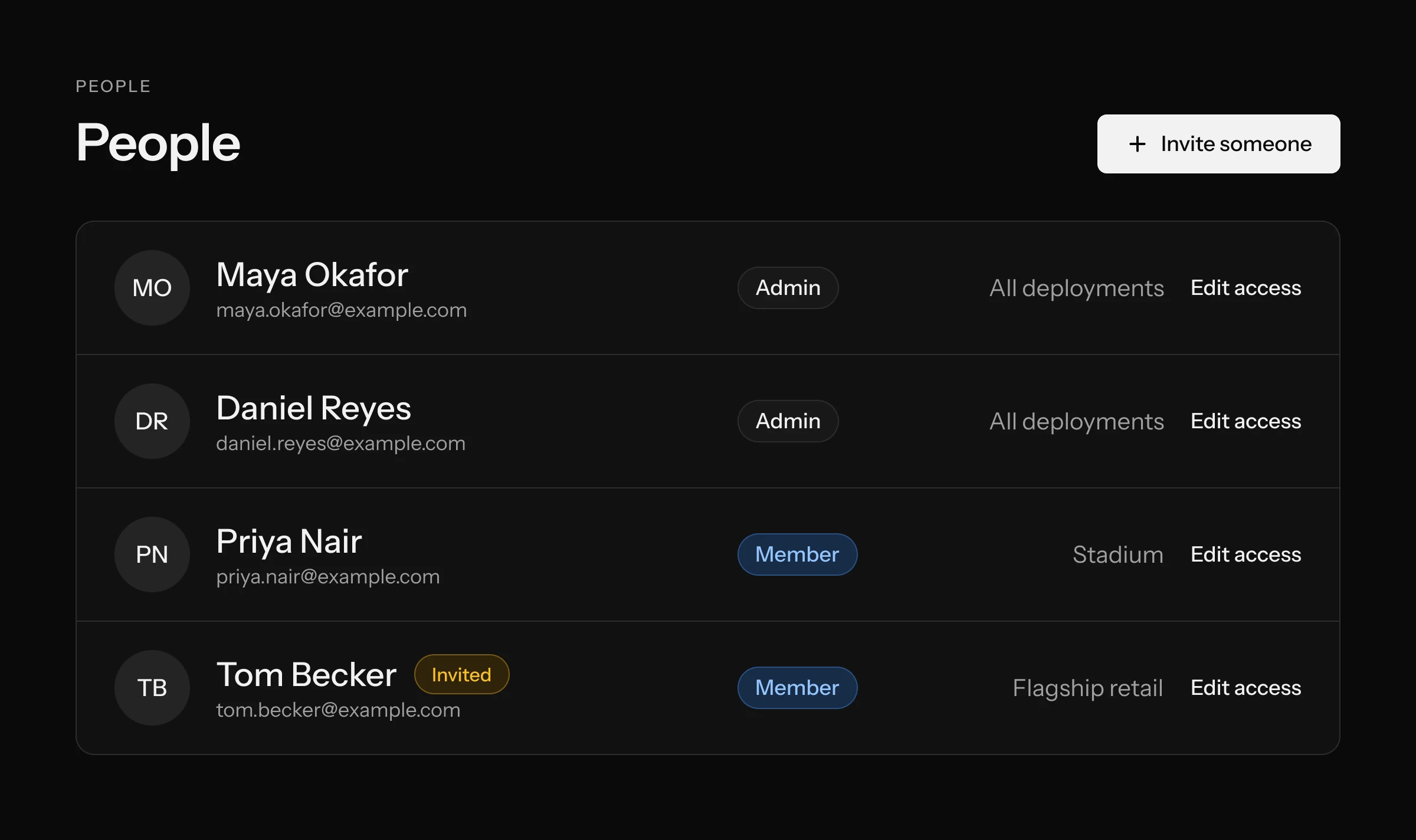
Give your team the access they need, and nothing they do not. From a flagship store manager to a global brand lead, everyone signs in once and sees exactly their part of the network.
Organisation
Your company
Apps, Content Schedules and Media are shared across everything below.
Deployment
Stadium
- Concourse North
- VIP lounge
- Fan zone
Admin can manageMember can manage
Deployment
Flagship retail
- Window
- Fitting rooms
Admin can manageNot shared with this Member
Deployment
Airport T2
- Gate area
- Arrivals
Admin can manageNot shared with this Member
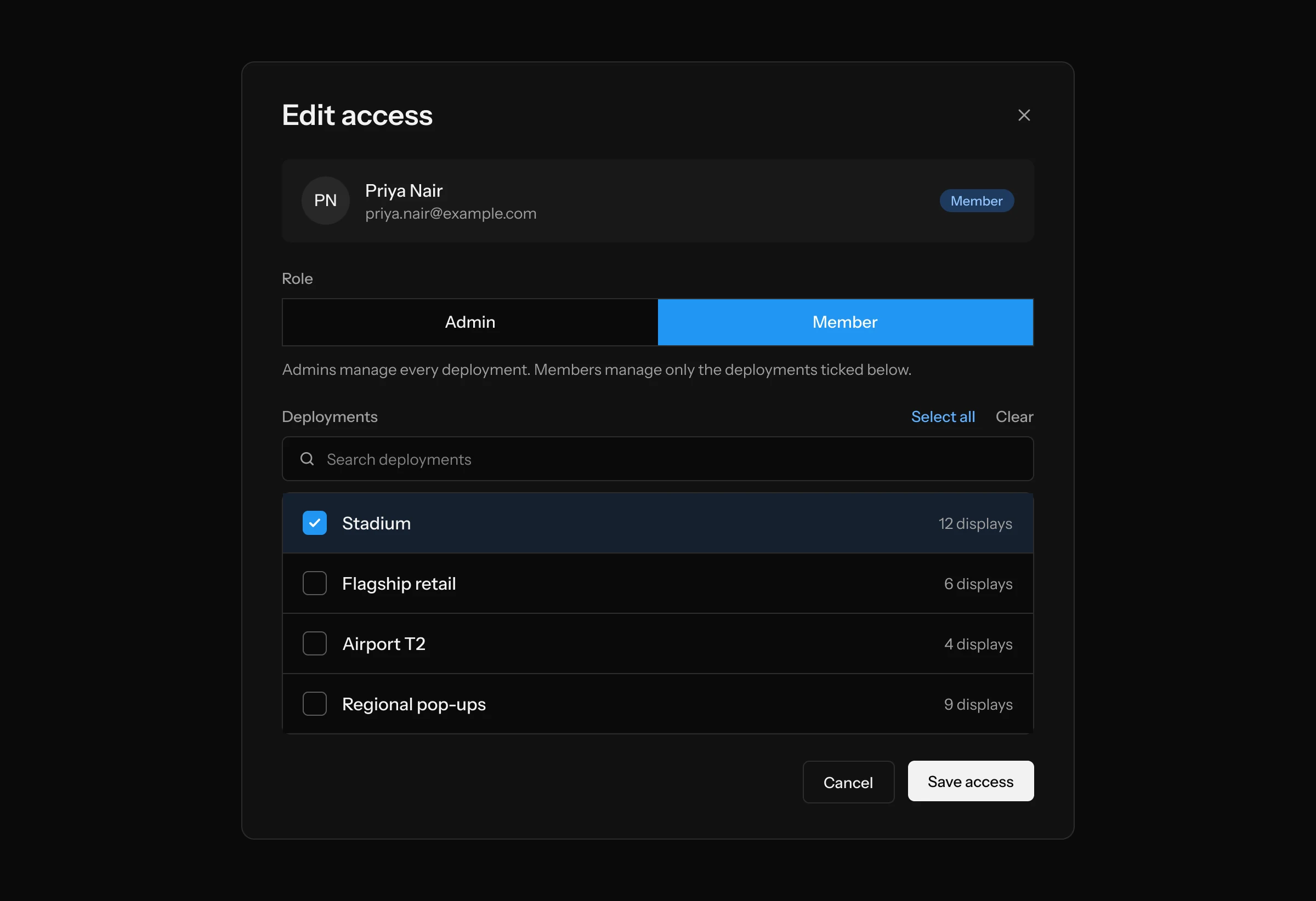
An Admin manages every deployment in the organisation.A Member manages only the deployments they have been given, here the Stadium.
- Organization
- Your company’s account.
- Deployments
- Groups of displays by venue, region, brand or campaign.
- Devices
- Each display belongs to one deployment. Moving it keeps its content and schedules.
Admin
Manages every deployment, creates and renames them, assigns displays, invites people and edits access.
Member
Manages only the deployments they are given, including scheduling content, deploying apps and watching status on those displays.
Invite by email
Add someone with a role and the deployments they can manage. Pending invites can be copied, emailed or revoked.
Edit access any time
Select all, clear or search, and changes apply immediately.
Spot gaps
The people list flags anyone with no deployments, so nobody is locked out by accident.
08 / Secure by design
Built so your fleet stays yours
Your screens, content and people are visible only to your organisation. Access is granted deliberately, never by default.
01
Separate by design
Everything in your Console belongs to your organisation. No other customer can see your displays, content or people.
02
The right access, nothing more
Members open only the deployments they have been given. Admins decide who gets what.
03
Checked before it ships
Uploads are verified against supported formats before they reach a display.
- AICPA SOC 2 Type II
- NVIDIA Inception Program
- VR/AR Association member
- AWS Activate
09 / Audience intelligence
From footfall to attention to action
The Console is where you act. Metalitix, a division of Aircards Studio, is where you learn what worked. LUX-75 can be connected to Metalitix, so interaction data lands where you can act on it.
Engage
Publish a campaign from the Console.
Monetise
Run it on the screens where it earns.
Measure
See stops, attention and interaction in Metalitix, then adjust the schedule.
10 / Developer SDK
Early access
Build for LUX-75 and run it from the Console
Your team can build its own interactive experiences with the Developer SDK. Create SDK tokens in the Console’s Develop area, send your app’s AI jobs to Invisionary’s GPU displays from your own machine, then deploy the finished experience like any other app.
SDK Tokens
Named tokens with an expiry of your choice, copied once and never shown again. A token can only send jobs.
Docs built into the Console
Download the SDK and try working examples in several languages, covering LLM and image-generation jobs.
Develop on your laptop and run on the display
Your app talks to the same interface in both places, so the code is identical and there are no credentials in the app.
11 / A day in the Console
Illustrative scenario
Launching a campaign on forty screens before ten o’clock
- 08:30
Priya, a marketing lead, opens Media and drops in the new kit-launch film. The Console flags one file below 4K, so she swaps it.
- 08:41
She builds a Media Playlist with the film, product stills and the live offers page, then drags them into order and sets durations.
- 08:52
In Content Schedules, she adds the playlist and the try-on app, and sets the status to Active.
- 09:05
Switching to the Stadium deployment, she opens each display. The Console flags Missing 1 on three. One click adds it.
- 09:12
She drags the schedule onto the Overlay track from 10:00, with the try-on Always On below it.
- 09:20
Devices shows every pin green. One display shows a Critical alert. Her IT lead, a Member with access to that deployment, picks it up.
- 10:00
The campaign starts on every display. Nobody leaves their desk.
12 / What Admins and Members can do
Roles that keep the right people in control
Admins run the organisation and Members run the screens they have been given, with everyone signing in once.
| Capability | Admin | Member |
|---|---|---|
| Content | ||
| Browse your app library | ●Yes | ●Yes |
| Create and edit Content Schedules | ●Yes | ●Yes |
| Upload media and build Media Playlists | ●Yes | ●Yes |
| Displays | ||
| Open deployments and see displays on the map | All deployments | Assigned deployments |
| Install apps and assign schedules (Interactive, Overlay, Always On) | ●Yes | ●Yes |
| Check live status, health and alerts | ●Yes | ●Yes |
| Name a display and set its location | ●Yes | ●Yes |
| Organisation | ||
| Create and rename deployments | ●Yes | –No |
| Assign displays to deployments | ●Yes | –No |
| Invite people and manage their access | ●Yes | –No |
| Rename the organisation | ●Yes | –No |
| Develop | ||
| Create SDK tokens and read the docs | ●Yes | ●Yes |
13 / FAQ
The practical questions
Is the Console included with LUX-75?
Yes, every LUX-75 is managed from the Console, whether it is on short-term event hire or permanently installed.
Do I need to be on site to publish or update?
No, because displays check in with the Console and new schedules, media and app releases reach them automatically.
Can different teams or regions only see their own screens?
Yes, you organise displays into deployments and give each Member only the deployments they need, while Admins can open all of them.
Can I schedule an app that is not installed on a display?
No. The Console checks every app in a schedule against the display first, shows which ones are missing and lets you add them in one click.
What can I upload?
MP4 and WebM video, and JPEG, PNG, WebP and GIF images. Files the display can’t play are stopped at upload with an explanation. For best results, supply 2160 × 3840 portrait content. You can also upload apps you build yourself with the Invisionary SDK. See the Invisionary Media Specification for encoding details.
Can I run an interactive app and an overlay at the same time?
Yes, because every display has an Interactive track and an Overlay track that run together.
How do I get more apps or displays?
Talk to your Invisionary team and once they’re in place they appear in your Console ready to use.
Can I build my own experiences?
Yes, with the Developer SDK, which is currently in early access, and if you register your interest we’ll be in touch.
How is my data kept separate from other customers?
Everything is scoped to your organisation, so no customer can see another’s deployments, devices, content or people.
Book a demo
See the Console run a fleet
Tell us about your venues and we’ll walk you through the Console on a live fleet, covering scheduling, deployment, monitoring and access, in 30 minutes.